Kickstart Commissions Back To Hub
Introduction About 2 minutes

Welcome to Kickstart Commissions

Hey — and welcome to Kickstart Commissions.

I’m glad you’re here.

This training has been designed to give you a simple, beginner-friendly introduction to affiliate marketing and walk you through the process step by step.

You don’t need previous affiliate marketing experience, an existing audience or an email list to follow the core training.

The best way to use it is simple: start at the beginning, work through each lesson in order, and focus on one step at a time.

What You’ll Learn

01

Understand Affiliate Marketing

Learn what affiliate marketing is and how the basic process works.

02

Get Started With ClickBank

Set up your account and understand the platform we’ll be using.

03

Set Up Your Payments

Learn how ClickBank payments work and configure your account.

04

Find Offers to Promote

Learn how to use the Marketplace and evaluate potential offers.

05

Create Your Affiliate Link

Generate the tracking link you’ll use to promote an offer.

06

Learn How to Get Traffic

Learn how we’ll use Solo Ads to send visitors to an offer.

How to Use This Training

  • Work through the lessons in order
  • Complete each step before moving on
  • Don’t worry about mastering everything at once

You’re Ready to Begin

That’s it.

Start with Lesson 1 and we’ll build everything from there, one step at a time.

Next up: Lesson 1 — What is Affiliate Marketing & How Does It Work?

Lesson 1 About 3 minutes

What is Affiliate Marketing & How Does It Work?

What Is Affiliate Marketing?

Affiliate marketing is a way to earn a commission by recommending another company’s product or service.

You do this using your own unique affiliate link. If someone clicks your link and makes a purchase that is correctly tracked to you, you could earn a commission.

That’s the basic idea.

How Affiliate Marketing Works

01

Choose a Product

Pick a product or service you want to recommend.

02

Get Your Link

Get your unique affiliate link for that product.

03

Send People

Send people through your link to the product page.

04

A Purchase Is Made

If it is tracked to your link, you could earn a commission.

What Do You Actually Do?

Your main job as an affiliate is to introduce people to products or services they may be interested in.

A Simple Example

Imagine someone is interested in learning affiliate marketing. You show them a course about affiliate marketing using your affiliate link.

INTERESTED
PERSON
Wants to learn
affiliate marketing
AFFILIATE
LINK
Clicks your
affiliate link
PRODUCT
PAGE
Visits the
course page
MAKES A
PURCHASE
Chooses to buy
the course
YOUR
COMMISSION
You could earn
a commission

That’s essentially the role of an affiliate — helping connect the right person with a product they’re already interested in.

You don’t need to:

  • Create the product yourself
  • Hold stock or inventory
  • Arrange shipping
  • Employ staff
  • Handle customer service for the product

Major Brands Use Affiliate Marketing

Affiliate marketing is a genuine, established way for businesses to attract customers.

Major brands including Amazon and eBay run official affiliate programs that pay commissions for qualifying referrals.

So this isn’t a new or unusual idea — it is a marketing model used by well-known businesses around the world.

Comparison image showing Amazon Associates and eBay Partner Network affiliate program examples

Different Products Pay Different Commissions

There isn’t one fixed commission rate in affiliate marketing.

Some products pay a small percentage of each qualifying sale, while others pay a higher percentage.

That’s why the product you choose can make a difference — and it leads us to the platform we’ll be using in this training.

Why We’ll Be Using ClickBank

Throughout Kickstart Commissions, we’ll mainly use ClickBank to find products to promote.

ClickBank has a section called the Marketplace. Think of it as a searchable list of products that affiliates can choose from.

ClickBank homepage preview

The company or product owner decides how much commission they will pay affiliates. Some ClickBank products may pay commissions of up to 75%, depending on the product.

In the next lesson, we’ll set up your ClickBank account and show you where to find these products.

How Do We Get People to Click Our Link?

Having an affiliate link is only part of the process. We also need people to visit the product page.

In online marketing, these visitors are often called traffic. Put simply, traffic means people visiting a page.

There are lots of ways to get traffic. Inside Kickstart Commissions, the main method we’ll be using is Solo Ads.

You don’t need to understand Solo Ads yet — we’ll explain them properly later in the training.

You’re Ready for Lesson 2!

You now understand:

  • What affiliate marketing is
  • How the basic process works
  • What your role is as an affiliate
  • Why different products can pay different commissions
  • That people need to click your affiliate link for the process to work

Next up: Lesson 2 — Getting Started With ClickBank

Lesson 2 About 5 minutes

Getting Started With ClickBank

Let’s Get Your ClickBank Account Set Up

In Lesson 1, you learned that we’ll be using ClickBank to find products you can promote as an affiliate.

Now we’re going to get your account ready.

There are just three things we need to do:

  • Create your ClickBank account
  • Complete your profile
  • Create your account nickname

We’ll take them one step at a time.

Step 1 — Create Your ClickBank Account

Click here and ClickBank will open in a new tab.

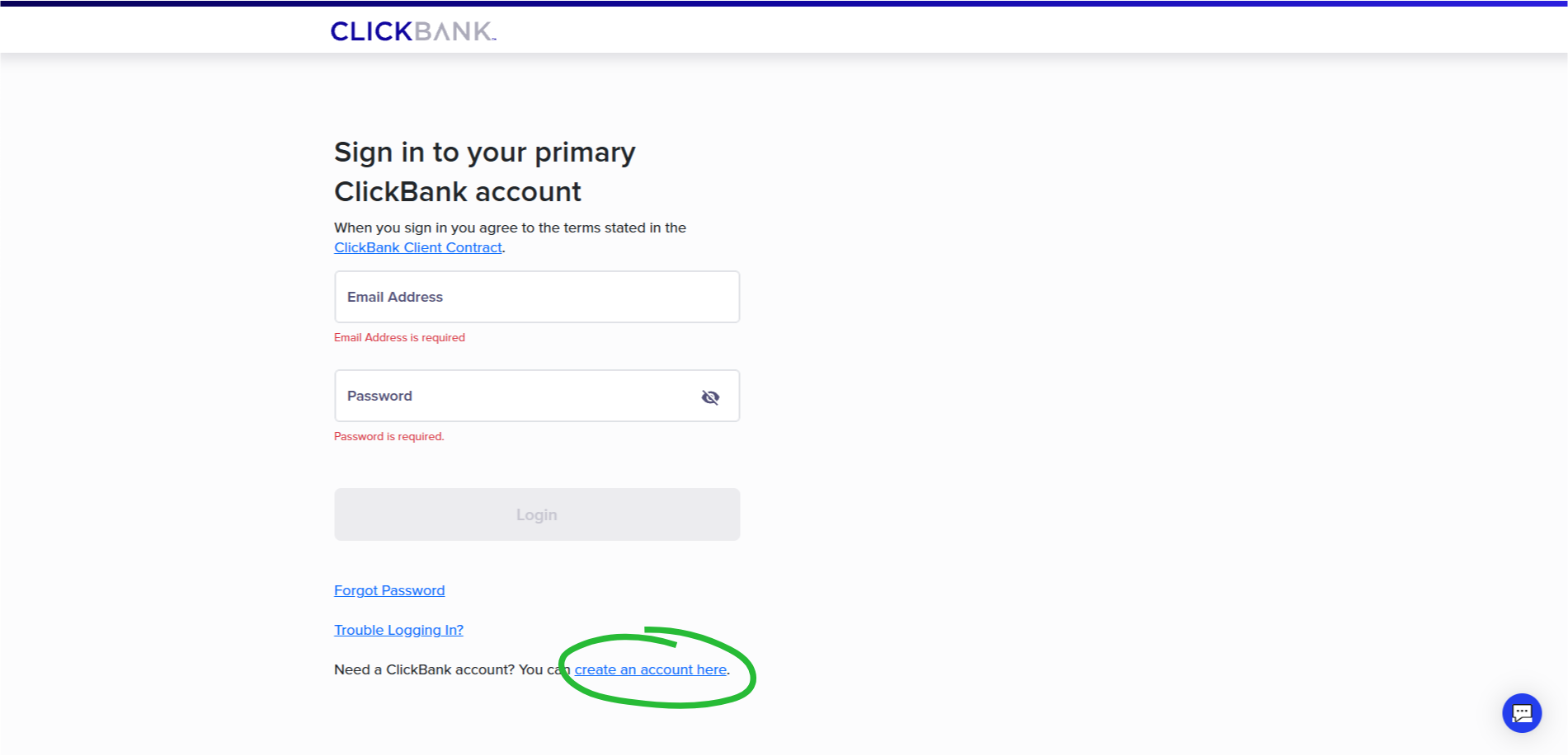
To avoid a lengthy registration process, we're going to ignore ‘Start Here’, and instead click ‘Log In’.

ClickBank account sign-up page placeholder

Scroll to the bottom of the sign in form and Click 'Create an account here'.

ClickBank sign-up screen placeholder

Enter the information ClickBank asks for, which may include:

  • Your country
  • Your first and last name
  • Your phone number
  • Your email address
  • A password

Use your real, accurate information. ClickBank may ask you to confirm or verify details during the sign-up process.

Follow the on-screen steps to accept the terms and create your account.

When clicking 'Continue to Terms & Conditions', it will open in a new tab. Once you have read them, head back to the Clickbank tab, tick; I have read and agree to the Terms and Conditions and click 'Create Account'

Terms and account creation placeholder

Step 2 — Complete Your Profile

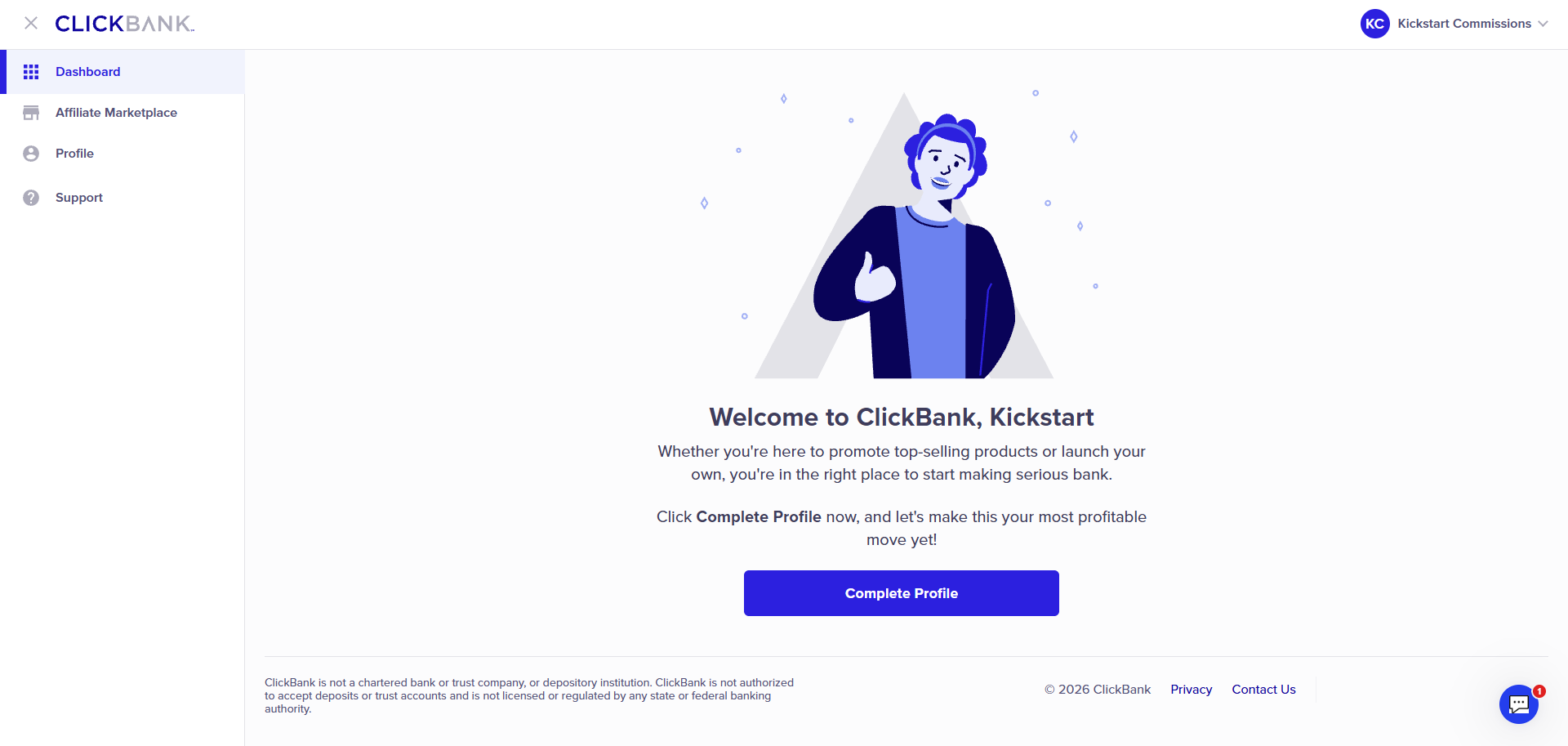
Once you’re logged in, ClickBank will ask you to complete your profile.

Enter the information requested for your country, including your correct address and any other details ClickBank requires.

You may also be taken through a verification process. Just follow the instructions shown on screen.

Complete My Profile screen placeholder

You may see one extra ClickBank message first: if an “Attention ClickBank Sellers and Affiliates” window appears, follow the instructions shown on screen and accept the message before continuing.

Step 3 — Create Your Account Nickname

Next, we need to create your account nickname.

This nickname also becomes your affiliate ID — the identifier ClickBank uses for your affiliate activity.

  • Open the Accounts section
Accounts section placeholder
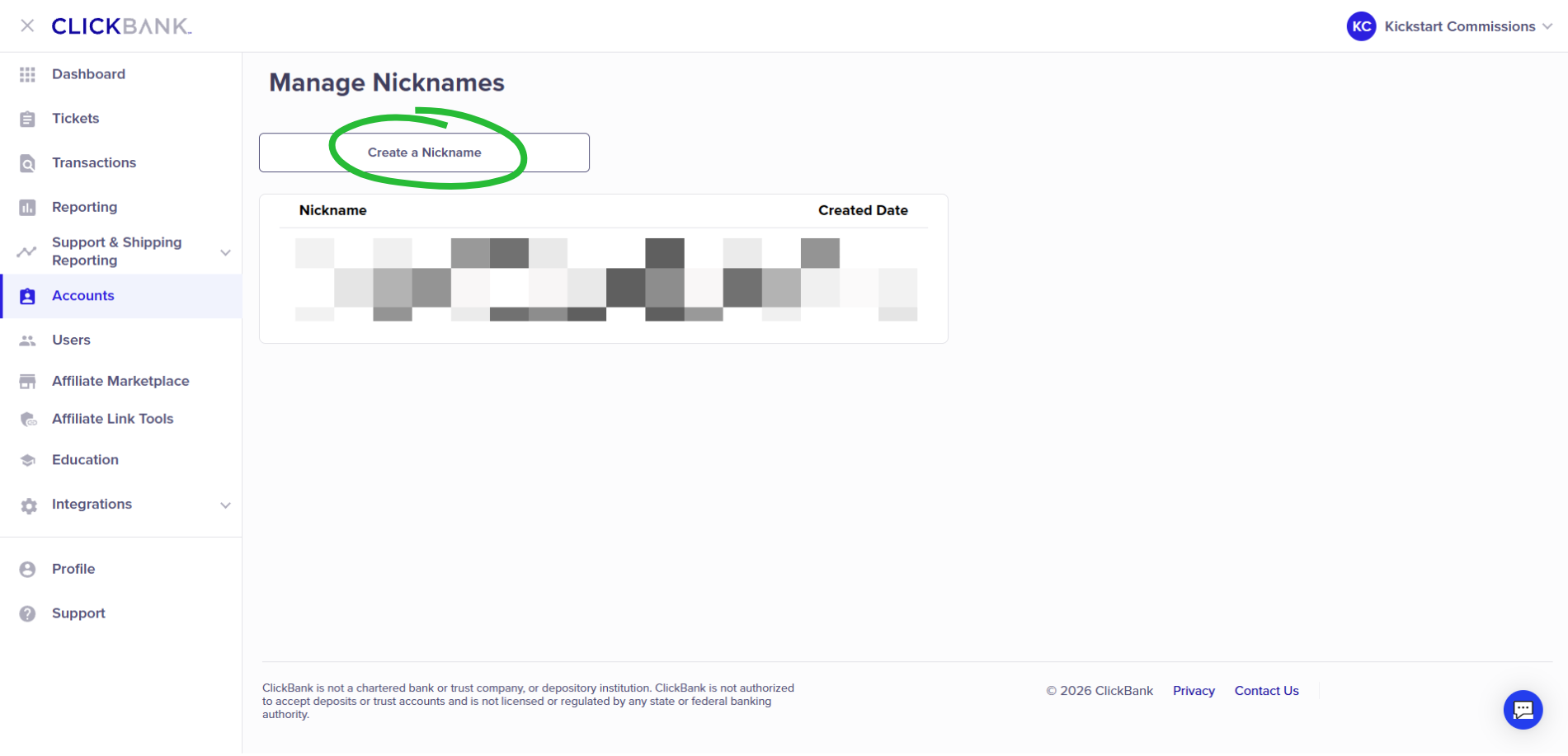
  • Select Create a Nickname
Create a Nickname placeholder
  • Select Affiliate (Promote products) as the account type
  • Create your account nickname
Affiliate account type placeholder

Create Your Nickname Carefully

Your nickname does not need to be clever. Keep it simple, easy to read and something you’re happy to keep.

  • Choose something short and sensible
  • Make it easy to read and spell
  • Avoid anything confusing or inappropriate
  • If your first choice is taken, try a simple variation or add a few numbers

For example, a simple nickname could look like:

brightpath onlinehub7 learnhub25

Choose carefully: ClickBank does not currently allow you to change an account nickname after it has been created.

  • Select Sign Up to complete

One Nickname Is Enough to Start

You may see options to create more ClickBank account nicknames later.

For this training, one is enough.

You can use one affiliate nickname to promote multiple products, which keeps things simpler while you’re learning.

Your ClickBank Account Is Taking Shape

You should now have:

  • Your ClickBank account created
  • Your ClickBank profile completed
  • Your account nickname created

There’s one more important setup step: telling ClickBank how you want to receive your commission payments.

We’ll take care of that in the next lesson.

Next up: Lesson 3 — Getting Paid

Lesson 3 About 5 minutes

Getting Paid

Set Up How ClickBank Will Pay You

In the last lesson, you created your ClickBank account and your account nickname.

There’s one more important setup step before we start looking for products to promote: adding your payment information.

This tells ClickBank how you want to receive any commission payments that become due to you.

Step 1 — Open Your Payment Settings

Log in to ClickBank and open the Accounts section.

Accounts section placeholder

Select the account nickname you created in Lesson 2.

Account nickname placeholder

Don’t worry if ClickBank suddenly looks different. Clicking your account nickname opens its account-specific interface in a new browser tab. This is normal. We only need to use this screen for the settings we’re about to change.

In the account-specific screen, open Account Settings.

Account Settings placeholder

Find the Payment Information section and select Edit.

Payment Information Edit placeholder

Step 2 — Choose Your Payment Settings

Inside Payment Information, there are three settings worth understanding.

1. Payment Threshold

Your payment threshold is the account balance you need to reach before ClickBank can issue an eligible payment.

ClickBank currently sets a default threshold, and you can choose another amount from the options available in your account.

You don’t need to overthink this. Choose a level you’re comfortable with — you can change it later.

2. Payment Frequency

ClickBank may also let you choose how frequently eligible payments are issued.

Available frequencies can depend on the payment method you select. Standard options can include weekly or every two weeks.

Choose the option that suits you from those available in your account.

3. Payment Method

Next, choose how you would like ClickBank to send your payments.

The methods available can depend on your country and account. ClickBank may show options such as:

  • Direct deposit
  • Paper check
  • Wire transfer
  • Payoneer

Choose from the options ClickBank makes available to you and enter the requested details carefully.

Payment Method placeholder

Step 3 — Save Your Payment Information

Check the details you’ve entered, then select Save Changes.

If ClickBank sends you a confirmation email for the payment-method change, open the email and select the confirmation link to finish the update.

Your payment threshold is not the only requirement for your first payment.

ClickBank also has a Customer Distribution Requirement, often shortened to CDR. Put simply, ClickBank requires qualifying sales from multiple customers before the first payment can be released.

You don’t need to do anything with this setting now. Just be aware that reaching your payment threshold does not automatically mean your first payment will be sent immediately.

When Are Payments Sent?

ClickBank currently issues eligible payments on Fridays after the relevant pay period has ended.

Your bank or payment provider may then take additional time to process the payment, so the money may not appear immediately on the day ClickBank sends it.

Your Payment Settings Are Ready

You should now understand:

  • How to open the payment settings for your account nickname
  • Why ClickBank may open a different-looking account screen
  • What your payment threshold means
  • How to choose an available payment method and frequency
  • Why your first payment may require more than simply reaching the payment threshold

With the account setup taken care of, we can move on to finding products you may want to promote.

Next up: Lesson 4 — Choosing Products

Lesson 4 About 6 minutes

Finding Products to Promote

Let’s Find a Product to Promote

Now that your ClickBank account and payment settings are in place, it’s time to look at the products you could promote.

ClickBank has an Affiliate Marketplace — a searchable area where you can browse products that are available to affiliates.

You’ll also see ClickBank use the word offer. Put simply, an offer is a product or promotion that an affiliate can choose to promote.

One important point before we start: there is no Marketplace number that can guarantee a product will make sales for you. The statistics show previous performance and can help you compare offers, but your own results can be different.

Step 1 — Open the Affiliate Marketplace

Log in to ClickBank and select Affiliate Marketplace from the navigation.

From here, you can search for products, browse categories or use ClickBank’s filters to narrow down the results.

Affiliate Marketplace placeholder

Step 2 — Start With Top Offers

If you’re completely new, Top Offers is a useful place to begin.

ClickBank uses this section to highlight offers that are currently trending or performing well on the platform.

That does not mean every Top Offer will be right for you. Think of it as a shortlist worth exploring rather than a list of guaranteed winners.

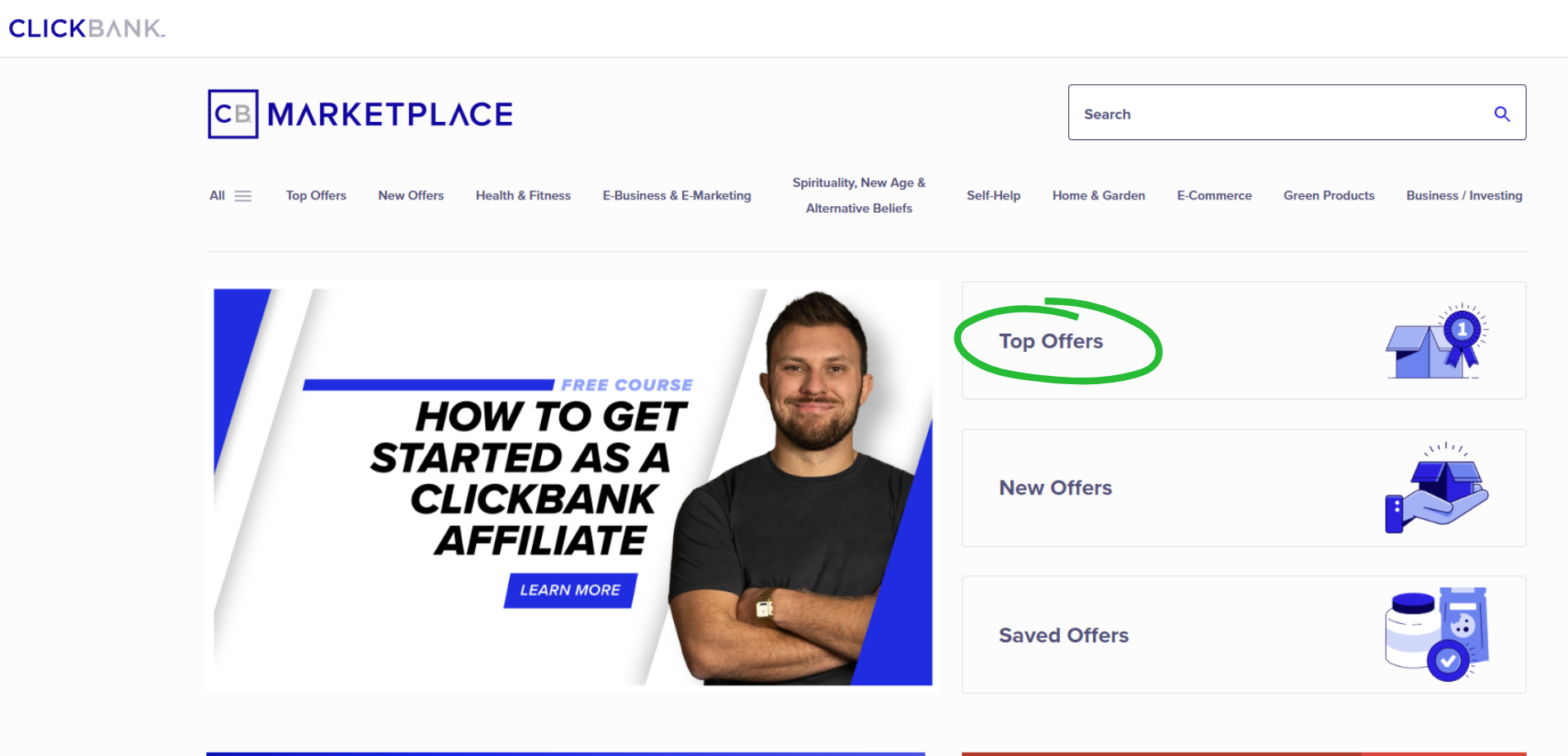
  • Select Top Offers to view the current Top Offers list
Top Offers screen placeholder

You’re also not limited to the products shown in Top Offers.

If you want to explore a particular niche — which simply means a specific topic or market — select All in the Marketplace navigation.

This will show the different product categories available. You can then explore the subcategories inside each one to find products related to the type of niche you want to promote.

For example, you may decide to explore areas such as health, business, relationships, hobbies or another topic that interests you.

  • Select All to browse the available categories and subcategories
All categories and subcategories placeholder

You can also use the Marketplace search bar if you already know what type of product you’re looking for.

Step 3 — Understand the Main Marketplace Numbers

Each Marketplace listing contains information that can help you compare one offer with another.

You do not need to become an expert in these numbers. For now, just understand what the main ones are telling you.

Avg $/Conversion — The average commission affiliates earned for each conversion over the previous 90 days. This can include the first purchase and some later purchases.
CVR — Short for conversion rate. This is the percentage of affiliate-link clicks that resulted in an initial sale over the previous 30 days.
EPC — Short for earnings per click. This is the average net commission earned for each affiliate-link click over the previous 30 days.
Gravity — A ClickBank score that reflects how many different affiliates have recently earned commissions promoting the offer. More recent activity is given more weight.
Rank — A broader ClickBank ranking based on several performance factors, including sales and affiliate activity.

Do not choose a product from one number alone. A higher commission, EPC or Gravity can be useful information, but none of them tells you by itself whether the product is the right choice for the people you send to it.

Marketplace offer statistics placeholder

Step 4 — Check for Approval and Commission Type

Before choosing an offer, look for any extra requirements shown in its listing.

Some product owners require affiliates to be approved before they can promote their products. If you see Approval Required, the product owner must approve you before you can create your affiliate link for that offer.

Affiliates Require Approval placeholder

You may also see CPA mentioned in a Marketplace listing. CPA means the affiliate can receive a fixed amount for a qualifying conversion rather than a percentage of the sale. CPA arrangements normally require you to contact the product owner about your specific rate.

For this beginner training, avoid offers that require approval and/or provide CPA. Keeping things simple with a standard percentage-based commission — often called revenue share — is enough to understand the process.

Step 5 — Make a Sensible First Choice

It can be tempting to choose whichever product shows the biggest commission number. That is not necessarily the best way to choose.

For your first product, look for something where:

  • You can quickly understand what the product is and who it is for
  • The sales page looks clear, credible and easy to follow
  • The Marketplace statistics show that affiliates have been generating activity
  • You do not need additional approval, if you want the simplest route to get started
  • The product owner’s affiliate tools or instructions do not restrict the way you plan to promote it

Most importantly, think about the person who will eventually see the product. A strong Marketplace listing is not much use if the people you send to it have no interest in what is being sold.

Not Sure What to Promote First?

If you’re struggling to choose your first product, we recommend starting with one you’re already familiar with — Kickstart Commissions.

You’re working through Kickstart Commissions right now, so you already understand what the product teaches and the type of person it may be suitable for.

It also follows the exact process we’re teaching in this course, making it a simple first offer to use while you learn how everything works.

Click here to promote Kickstart Commissions and earn up to 75% commission on qualifying sales.

You Know What to Look For

You should now understand:

  • Where to find products inside the ClickBank Affiliate Marketplace
  • Why Top Offers can be a useful starting point
  • What the main Marketplace statistics mean
  • What approval, CPA and revenue share mean at a basic level
  • Why you should not choose a product from commission size alone

Once you’ve found a product you may want to promote, the next step is creating the unique link ClickBank uses to track your referrals.

Next up: Lesson 5 — Your Affiliate Link

Lesson 5 About 6 minutes

Creating Your Affiliate Link

Now Let’s Create Your Affiliate Link

In the last lesson, you learned how to find and compare products in the ClickBank Affiliate Marketplace.

We also recommended Kickstart Commissions as a simple first product to promote because it’s one you’re already familiar with.

Now we’re going to use Kickstart Commissions as our example and create your affiliate link step by step.

The same basic process can then be used when you choose other suitable ClickBank products to promote.

What we need now is the unique link that connects your promotion to your ClickBank affiliate account.

This is called an affiliate link. ClickBank calls its affiliate tracking links HopLinks.

Simple way to think about it: your HopLink sends someone to the product page and tells ClickBank which affiliate referred that visitor.

Why Your HopLink Matters

When someone clicks your HopLink, ClickBank uses the link to track the referral back to your affiliate account.

If that person later makes a qualifying purchase that ClickBank correctly attributes to your referral, you may earn the commission offered for that sale.

ClickBank currently uses a 60-day HopLink tracking window. That means a purchase can still be attributed to the referring affiliate for up to 60 days after the customer clicks the HopLink, provided ClickBank can correctly track and attribute the referral.

Step 1 — Find Kickstart Commissions

Open the ClickBank Affiliate Marketplace and use the search bar to search for Kickstart Commissions.

Kickstart Commissions Marketplace search placeholder

Find the Kickstart Commissions listing and locate the Get Affiliate Link button.

Kickstart Commissions offer card placeholder

Step 2 — My Tracking Link

Select the account nickname you created in Lesson 2 and click Continue.

My Tracking Link window placeholder

Remember: your account nickname is also your affiliate ID. This is how ClickBank knows which affiliate the link belongs to.

Step 3 — Configure Your HopLink

ClickBank may show a few tracking link options that need configuring before you copy your link.

  • Affiliate Nickname — First, check that the correct account nickname is selected.
  • Landing Page — Leave this set to Default for the Kickstart Commissions example.
  • Link Type — Select HopLink.
  • Tracking Parameters — Leave the optional tracking parameters alone for now. They can be useful later for more detailed tracking, but you do not need them to create your first HopLink.
  • My Link — This is your encrypted affiliate link. Because the link is encrypted, your nickname will not be displayed in the URL. Select Copy.
Configured HopLink screen placeholder

That copied URL is your affiliate link for Kickstart Commissions.

You do not need to build the link manually. ClickBank generates an encrypted HopLink for you, which helps protect the affiliate information inside the link.

Step 4 — Check That Your HopLink Opens Correctly

Open a new browser tab, paste your HopLink into the address bar and press Enter.

HopLink pasted into browser placeholder

You should be taken to the Kickstart Commissions product page.

Kickstart Commissions product page placeholder

This confirms that the link opens and sends the visitor to the intended page.

Step 5 — Check That ClickBank Recorded Your Hop

The test click you just made also gives us a useful way to become familiar with ClickBank Reporting.

ClickBank calls a visit through an affiliate link a Hop.

Go back to your ClickBank dashboard, select Reporting and choose View as Affiliate.

Reporting and View as Affiliate placeholder

From the Reports menu, select Analytics.

Analytics report placeholder

Select your account nickname and open Traffic.

Account nickname and Traffic placeholder

Look for the Unique Hops data in the Traffic report. Your test visit should be recorded there once ClickBank has processed the click.

This confirms that your HopLink is tracking correctly. Any future clicks sent through your HopLink will also be recorded in ClickBank Reporting, along with the sales and commission data generated from your affiliate activity.

Unique Hops recorded placeholder

Important: always generate your HopLink using your own account nickname. Your nickname is your affiliate ID and connects the referral back to your affiliate account.

The Whole Process Is Pretty Simple

There are a few new terms here, but the basic process is only five steps:

1 Find Kickstart Commissions — Search for the offer in the Affiliate Marketplace.

2 My Tracking Link — Select your account nickname and continue.

3 Configure Your HopLink — Check the link options and copy the encrypted link.

4 Open the Link — Check that it reaches the Kickstart Commissions page.

5 Check Reporting — Look for your test Hop in the Traffic report.

Once you have done this once with Kickstart Commissions, the same process will feel much more familiar when you create affiliate links for other products.

Your First Affiliate Link Is Ready

You should now understand:

  • What an affiliate link is
  • Why ClickBank calls its affiliate links HopLinks
  • How your account nickname connects the link to you
  • How to create and copy a HopLink from the Marketplace
  • How to check that the link opens the correct product page
  • Where to look in ClickBank Reporting for your test Hop

You now have a product and an affiliate link that you know how to test.

The next question is: how do we get people to click it?

Next up: Lesson 6 — Solo Ads

Lesson 6 About 8 minutes

Getting Traffic With Solo Ads

Now Let’s Get People to Your Affiliate Link

At this point, you have a ClickBank account, a product to promote and a working HopLink for Kickstart Commissions.

The final part of the basic process is getting people to click that link.

In online marketing, those visitors are often called traffic. For this training, we’re going to use a paid traffic method called Solo Ads.

What Is a Solo Ad?

A Solo Ad is a paid email promotion.

You pay someone who already has an email audience to send an email promoting your link to people on that list.

People selling Solo ad traffic are called sellers. In simple terms, a seller is someone with a large email list who can send your promotion to their subscribers.

Choose a Seller
Find someone with an audience that fits your product.

Place an Order
Choose how many visitors you want to buy for your campaign.

Your Email Is Sent
The seller emails your promotion to their audience.

People Visit Your Link
Clicks are sent through your Kickstart Commissions HopLink.

Important: buying traffic does not guarantee sales. The purpose of your first order is to learn how the process works, see how traffic is recorded and begin gathering real data from your own test.

Why We’ll Use Udimi

For this course, we’ll use Udimi to buy Solo Ad traffic.

Udimi is a marketplace where you can browse Solo Ad sellers, review their ratings and traffic information, place an order and track the visitors delivered.

Udimi also filters the clicks it receives before counting them in your order statistics.

Step 1 — Create Your Free Udimi Account

Create your Udimi account here

Follow the on-screen instructions to enter the details requested and confirm your account if required.

Udimi sign-up screen placeholder

Step 2 — Find Sellers for Kickstart Commissions

Once you are logged in, the first thing you’ll see is your main Udimi dashboard.

This is where Udimi gives you quick access to your Solo Ad orders, messages and traffic activity. You may also see options for selling traffic, building an audience and other Udimi features, but you can ignore those for now.

For this training, we only need the Buy Solo Ads section.

Select Buy Solo Ads to start looking for sellers who can send visitors to your Kickstart Commissions affiliate link.

Udimi main dashboard

Because we’re using Kickstart Commissions for this example, look for sellers whose audience is relevant to topics such as affiliate marketing, making money online or online business.

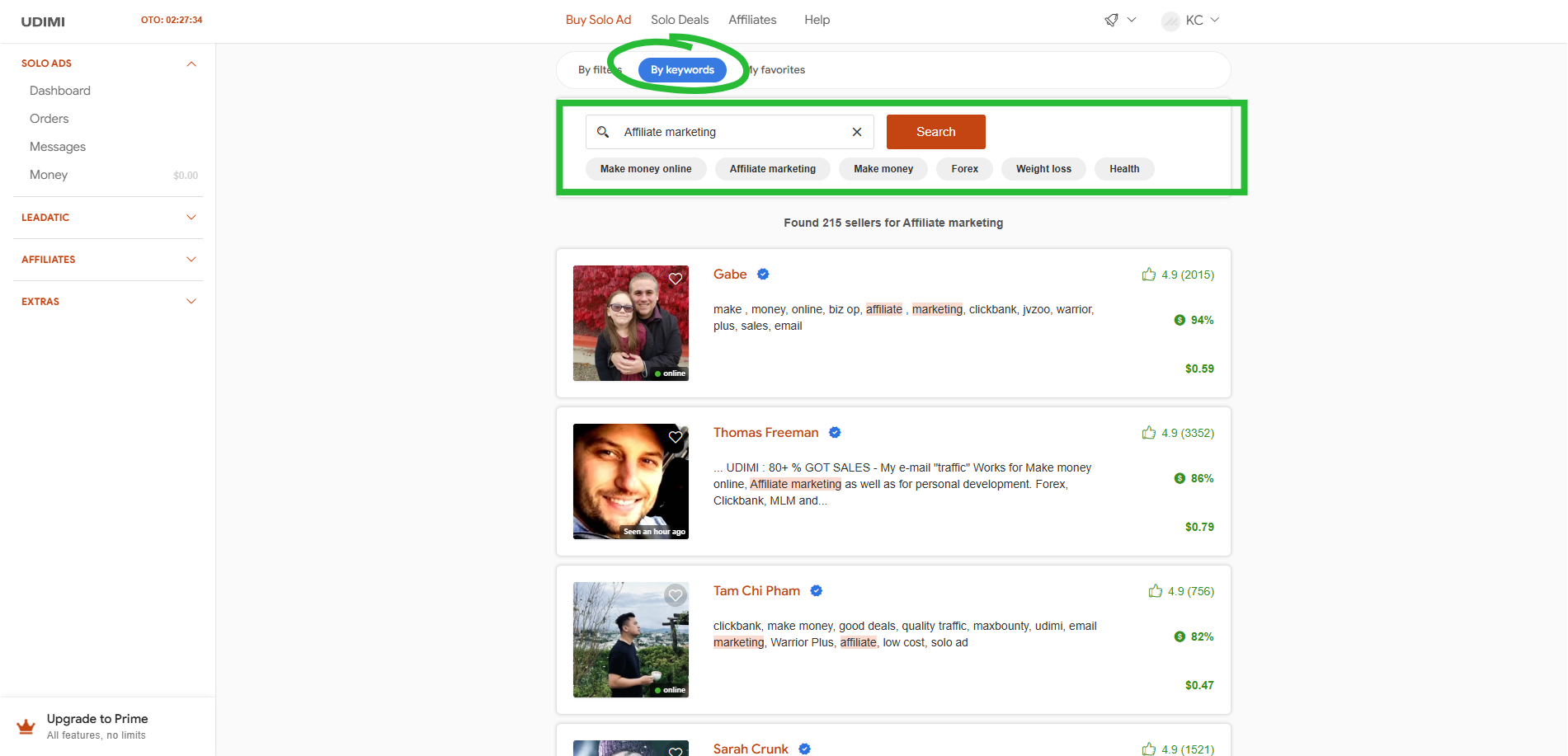
To do this, select By Keywords and select Affiliate Marketing.

All sellers that provide solo ad traffic in the affiliate marketing niche will be displayed.

Udimi Affiliate Marketing keyword filter

Step 3 — Review a Seller Before Ordering

Open a seller profile before placing an order.

Look at the information Udimi provides, including the seller’s ratings, price per visitor, recent traffic statistics and the niches they say their audience is interested in.

Udimi seller profile placeholder

If you’re unsure whether the seller’s audience is suitable for Kickstart Commissions, you can message them before ordering.

Simple message:

Hi [Name], I’m promoting an affiliate-marketing training product called Kickstart Commissions. Is your audience a good fit for this type of offer?

Thanks!

Step 4 — Set Up Your First Solo Ad Order

When you’re happy with the seller, use the order form on their profile.

For your first test, keep the order at a level where you are comfortable with the full cost. The goal is to learn from the data — not to assume one order will produce a sale.

  • Choose the number of clicks you want to order
Udimi Solo Ad click quantity selection
  • If you want traffic from top-tier countries only (USA, UK, Canada, Australia, New Zealand and Singapore), select Only top tier (recommended).
Udimi visitors and filters placeholder

Add Your Kickstart Commissions HopLink

Next, add the Kickstart Commissions HopLink you created and tested in Lesson 5.

Udimi gives you two simple options for the email that will be sent:

  • Only link — paste your HopLink and the Solo Ad seller will write the email for you. This is the easiest option, but you are relying on the seller to decide how the product is introduced to their subscribers.
  • Ad text — provide your own email copy with your HopLink included. This gives you more control over the message being sent. You can write your own email or, if you have our Email Swipes Pack, use one of the ready-to-use Kickstart Commissions emails provided there.
Udimi link or ad text placeholder

Why We Recommend Writing Your Own Solo Ad Email

When you order a Solo Ad, you can let the seller write the email for you. That’s quick and easy, but I recommend writing your own email copy instead.

The biggest reason is control. You decide exactly how Kickstart Commissions is introduced, what angle is used and what the reader sees before they click your affiliate link.

It also gives you something extremely useful: your own test data.

If a different seller writes a different email every time, it becomes much harder to know what actually worked. By using your own emails, you can start testing:

  • Which subject lines get attention
  • Which angles generate more clicks
  • Which emails produce better results
  • What you should change next time

Over time, you can keep what works, improve what doesn’t and build your own collection of promotional emails based on real results.

If you’d rather not start from a blank page, our Email Swipes Pack includes ready-to-use Kickstart Commissions emails that you can use as a starting point, test and adapt as you learn what works.

You’ll have the option to claim your Email Swipes Pack at the end of this training.

The goal isn’t to write the perfect email first time — it’s to take control, test and improve.

Choose the Start Date and Place Your Order

Select the date you want the Solo Ad to start.

Udimi may also give you the option to allow the seller to begin delivery earlier than the selected date.

Review the order details and total cost carefully. When you’re happy with everything, select Continue.

Udimi Solo Ad order details and Continue step

After payment, the seller receives the order and can accept or reject it. Udimi will notify you when the order status changes.

Step 5 — Track What Happens

Once the order starts, Udimi records the visitors delivered and provides statistics about the traffic.

You can use this to see information such as how many visitors were delivered and where those visitors came from.

You can then return to ClickBank Reporting, which you used in Lesson 5, and check the traffic recorded through your HopLink.

If ClickBank records a qualifying sale, the related sales and commission information will appear in your ClickBank reporting as well.

Do not judge everything from one result. A Solo Ad can deliver traffic without producing a sale. Keep a record of what you ordered, which seller you used and what happened after the clicks arrived before deciding what to test next.

You Now Know the Complete Basic Process

You should now understand:

  • What Solo Ads are and how they send traffic to an affiliate link
  • How to use Udimi to find and review Solo Ad sellers
  • How to set up a basic Solo Ad order
  • How to use your Kickstart Commissions HopLink in the order
  • Where to check the traffic after the order starts

You have now followed the basic process from choosing a product all the way through to sending traffic to your affiliate link.

Next up: Wrap Up — Putting It All Together

Wrap Up About 3 minutes

Congratulations — You’ve Completed the Core Training

You’ve now worked through the complete beginner process from setting up ClickBank to sending traffic to your affiliate link.

More importantly, you now understand how the different pieces fit together.

The Process You’ve Learned

  • Set up your ClickBank account and account nickname
  • Configure how you receive ClickBank payments
  • Find a suitable product in the Affiliate Marketplace
  • Create and test your HopLink
  • Use Udimi to send Solo Ad traffic to your link
  • Check your traffic and activity inside ClickBank Reporting

What's Next?... Build Your Kickstart System

The Core Training has given you the foundation — now it’s time to start building your affiliate marketing empire.

Strengthen the individual parts of the system, unlock the complete Growth Add-On stack, or take the premium route and have the lead-generation setup built for you.

Recommended Next Steps

🤖 Personal AI Coach available at checkout

✓

Advanced Targeting

Find stronger Solo Ad sellers, spot warning signs and stop wasting budget on weak traffic.

Recommended Launch Price$37 Unlock
✓

Email Swipes

Use ready-to-send Kickstart emails and take control of the message your Solo Ad audience sees.

Recommended Launch Price$27 Unlock
Special Offer Build the Complete Growth System

Unlock All 3 Growth Add-Ons

Put the three pieces together and strengthen the Kickstart system in one move — better traffic decisions, better email copy and your own lead-capture setup.

  • Advanced Targeting
  • Email Swipes
  • DIY Setup Bootcamp
Bundle Price $97 Save $34
Unlock All 3
Or
Premium Done For You
Want Us To Build The Complete System For You?

We’ll Build Your Lead-Capture System

Instead of sending paid visitors straight to an offer and potentially losing them forever, we’ll build you a complete lead-capture system that collects their email first — so you can follow up and promote relevant offers again and again.

  • Lead page built for you
  • AWeber connected
  • Follow-up emails installed
  • Domain included
  • Hosting included
  • One-on-one support included
All 3 Growth Add-ons Included — Worth $131
$2,500 Value $497
Build It For Me

Core Training Complete

You now have the foundation. Keep things simple, follow the process you’ve learned and use your reporting to understand what happens after the traffic arrives.